Configure your NETWALK Profile Page in six steps: reorder metrics, set display formats, update sender details, create signatures, and secure your password.
The details you work with every day should be easy to read and familiar to use. Whether you prefer measurements in centimeters, a 24-hour clock, or a specific number format, your NETWALK profile lets you adjust the interface to suit the way you work.
It is also where you manage your sender email, profile picture, and email signatures.
Start with your Profile Page
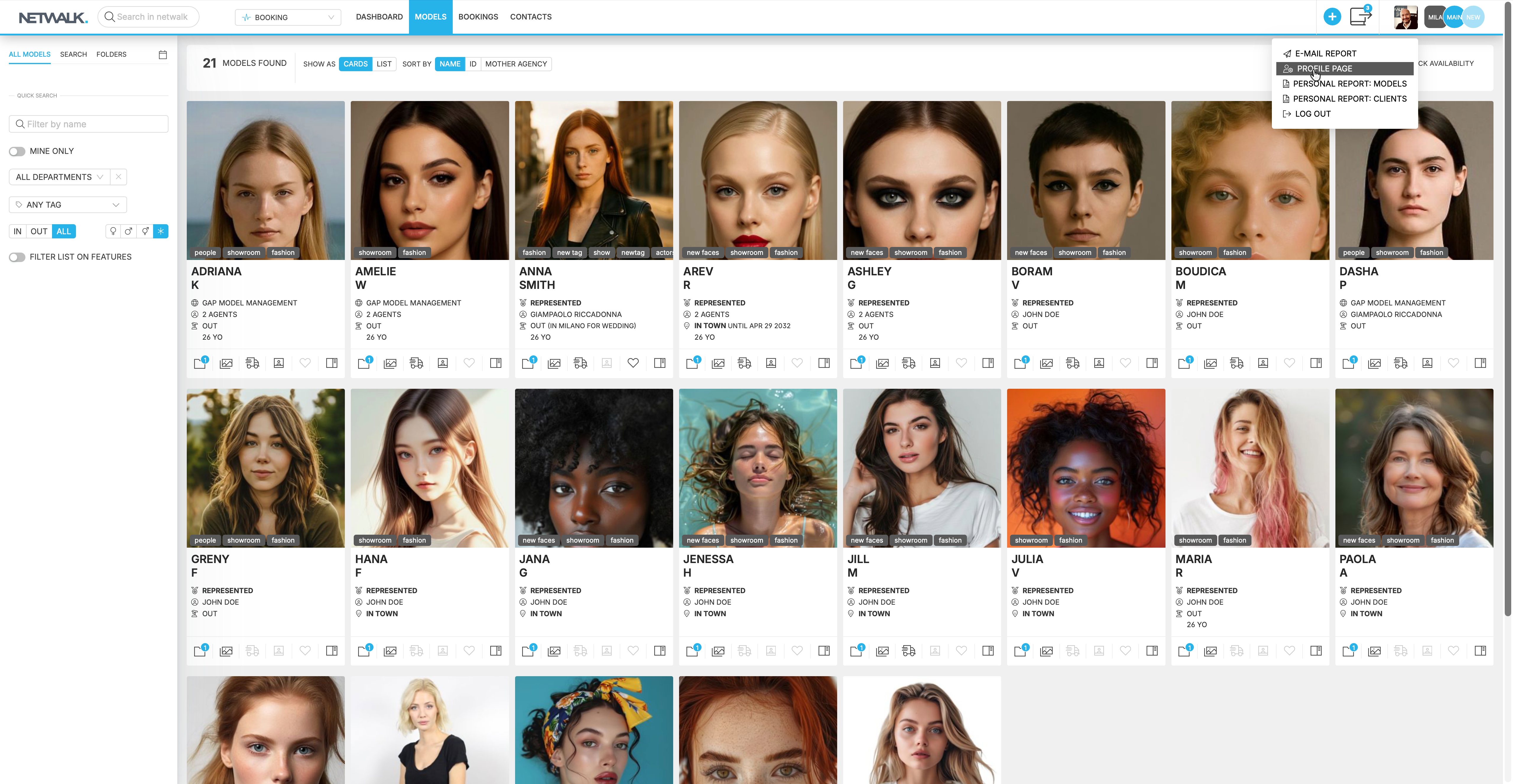
Click your profile icon in the header and select Profile Page.
You will find two sections: Settings, where you control display and export preferences, and Personal Information, where you manage your details and communication settings.
Put your preferred measurements first
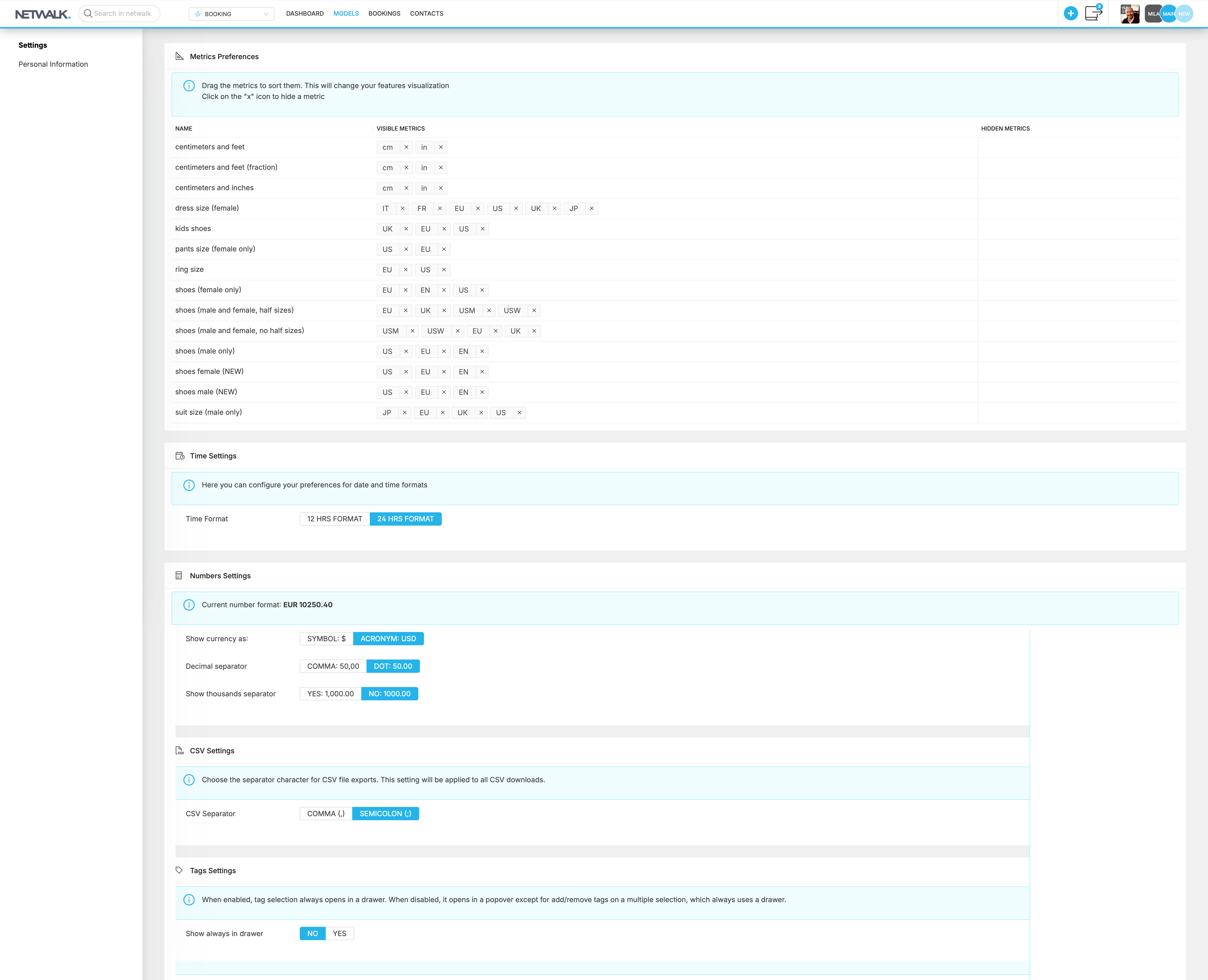
Working with international talent often means switching between measurement systems. In Metrics Preferences, you can choose which metrics appear and arrange them in the order that makes sense for you.
Drag a metric to change its position, or click its × to hide it. Hidden metrics remain available under Hidden Metrics: click one to bring it back.
This helps you keep the measurements you use most close at hand, without changing the underlying conversion tables.
Choose familiar time and number formats
Small formatting choices can make daily work easier. Under Settings, you can select:
- A 12-hour or 24-hour clock.
- Currency displayed as a symbol or acronym.
- A comma or dot as the decimal separator.
- Whether to display thousands separators.
- A comma or semicolon separator for CSV downloads.
These preferences save automatically and apply throughout the environment for your user profile.
You can also choose how tag selection opens. Enable Show always in drawer to use a side panel, or leave it disabled to use a popover. Adding or removing tags on multiple selected records always uses the side panel.
Keep your communication details up to date
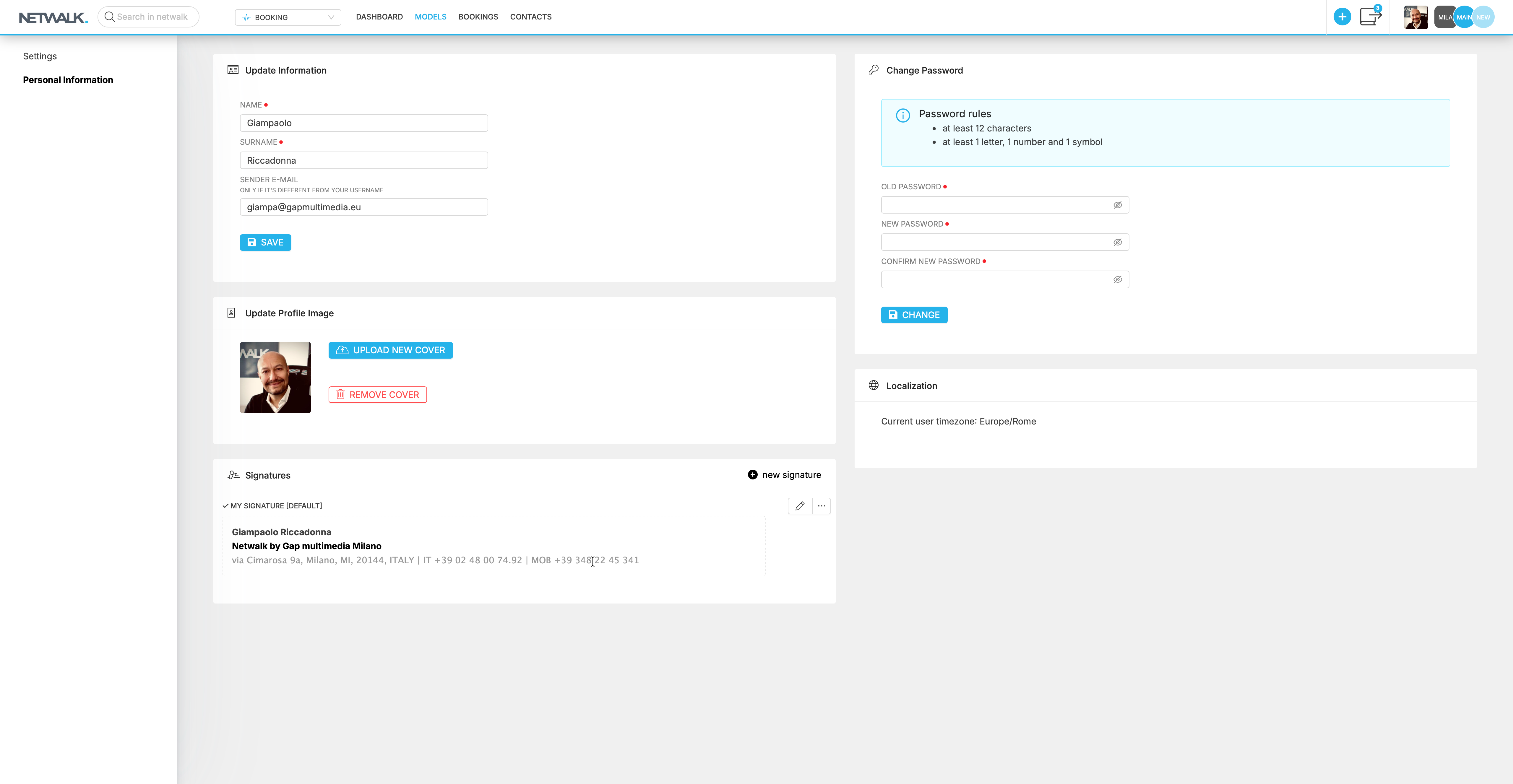
In Personal Information, you can update your name and surname and choose a profile picture.
The Sender E-mail field is useful when your outgoing email address differs from your login username. NETWALK uses this address as the mail-from address for your communications. After changing your details, click Save.
Your current time zone appears under Localization and is determined by your browser’s localization.
Give your emails a consistent signature
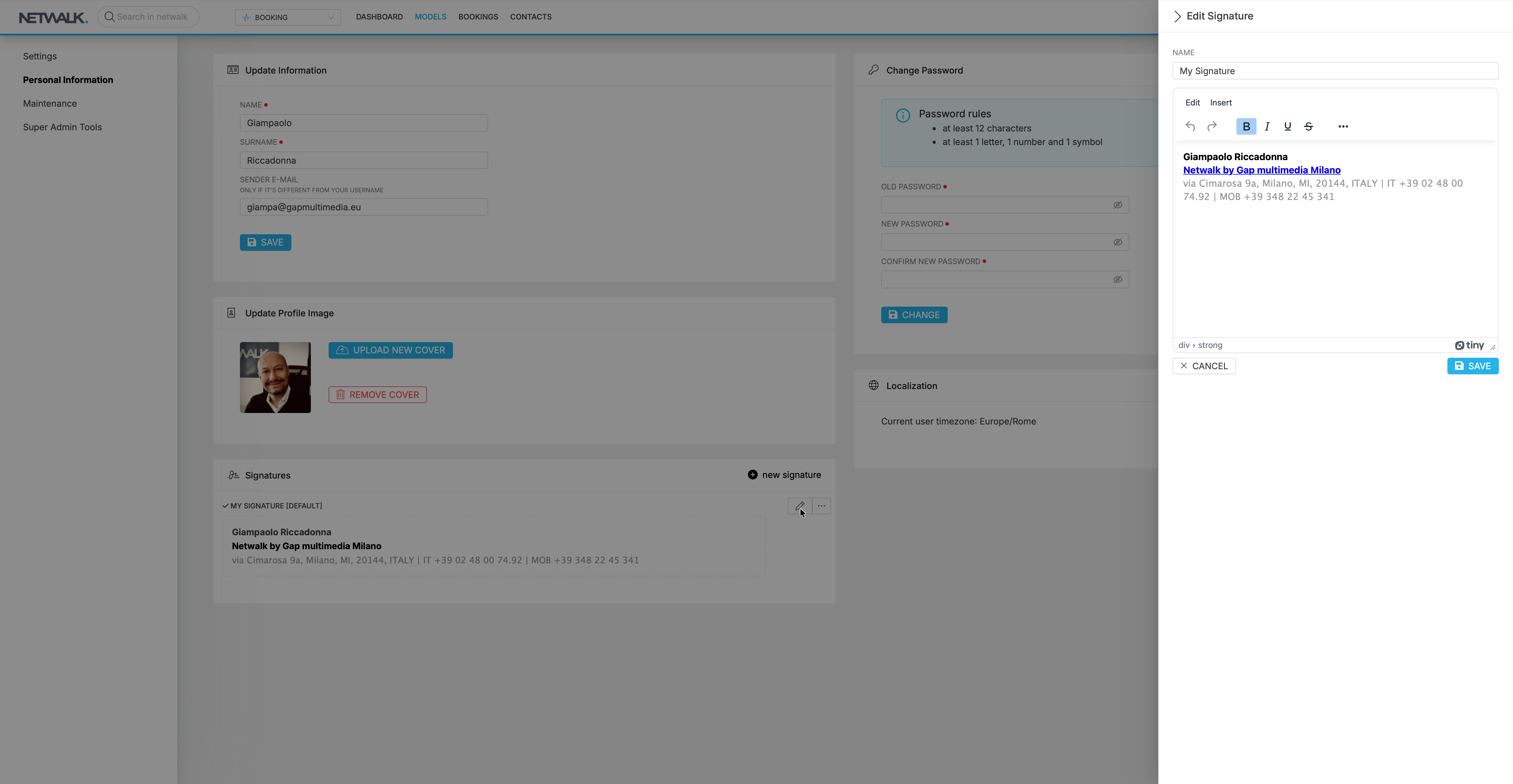
Your signature brings your contact details and agency identity into your communications.
In Signatures, select new signature to create one, or click the pencil icon to edit an existing signature. Give it a recognizable name, format the text, and drag a logo or image into the editor if you want to include one.
Click Save, then use the signature’s three-dot menu to set it as your default. You can keep multiple signatures; the default is clearly marked [DEFAULT].
Manage your password from the same page
The Change Password section lets you enter your current password, choose a new one, and confirm it.
Your new password must contain at least 12 characters, including one letter, one number, and one symbol. Click Change to complete the update.
Take a moment to set up your workspace
A few personal adjustments can make NETWALK more comfortable to use throughout the day. Open Profile Page, put your preferred metrics first, check your communication details, and prepare your signature.
You can return at any time as your preferences change.
Do Personal Preferences Control External Output?
A package, connected website, or document template may use its own display configuration instead of every preference of the user preparing it.
FAQs About Your NETWALK User Profile
Can I restore a hidden metric?
Yes. In NETWALK Metrics Preferences, click the metric under Hidden Metrics to bring it back. You can then drag it into your preferred position. Hiding and restoring metrics do not change the underlying conversion tables.
Must Sender E-mail match my login username?
No. NETWALK provides Sender E-mail for an outgoing address that differs from your login username. Enter the intended address in Personal Information and click Save. NETWALK uses that address as the mail-from address for your communications.
Can I keep multiple email signatures?
Yes. NETWALK lets you keep multiple signatures. Create or edit each signature in Signatures and click Save. Use the three-dot menu to choose the default, which is identified by the [DEFAULT] marker.
Why do bulk tag changes open a side panel?
Adding or removing tags on multiple selected records always uses the side panel. The Show always in drawer preference controls how ordinary tag selection opens; disabling it does not change the side-panel behavior for bulk tag operations.